
I’ve been a Picasa user for many years, but recently something has happened to where MP4 files will only play sound. After doing some research I learned some things that didn’t work and some things that did work. In the end I had to go one step further than any info I found.
The Problem
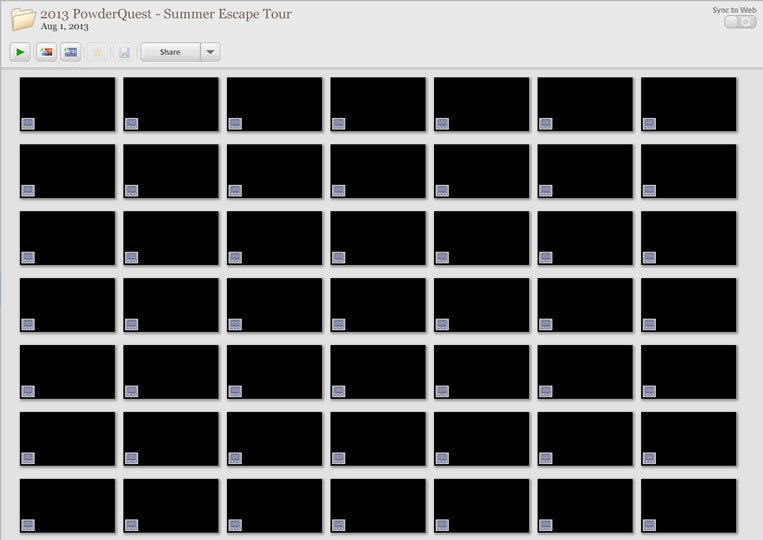
MP4 files would only play sound inside of Picasa and all of their icons were black.
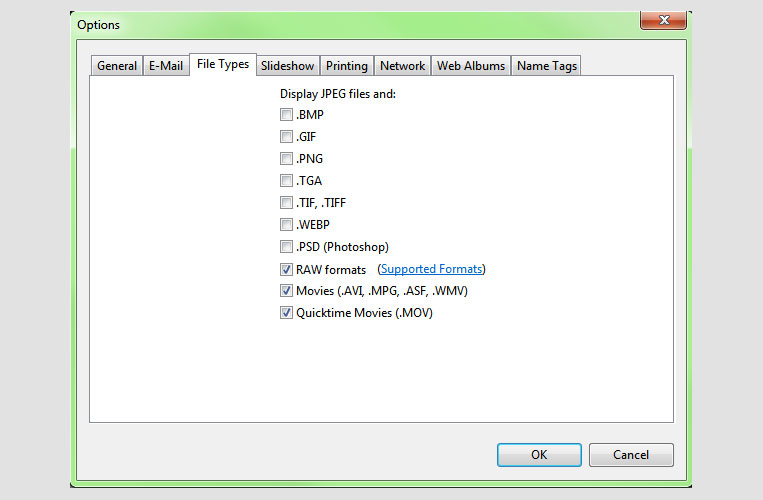
I verified my settings were set to display Movies and Quicktime Movies.
The Solution
UPDATE 5/15: K-Lite Codec Pack 11.1.5 – May 15th 2015
Install the K-Lite Codec Pack. There are four options you can download: Basic, Standard, Full and Mega.
I downloaded Version 10.3.5 Full ~ 26.6 MB ~ February 27th 2014
After installing and running K-Lite there should be an update to version 10.3.8 Build 20140319 so I installed that too.
Now I was making some progress, but I wasn’t totally satisfied. I could now see the video when playing, but all the thumbnails were still black on the main screen as well as the small view window at the top of the video player.
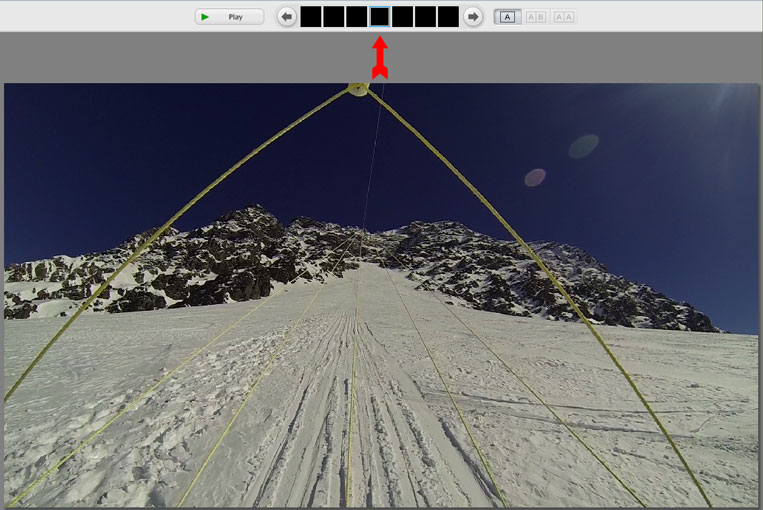
I decided to see if removing a video from a folder and putting it back in did anything and that did the trick.
So here are the final steps:
- Choose the folder you want to fix.
- Click the “show movies only” icon to hide all photos. (4th under Filters)

- Create a new folder on your Desktop.
- Drag & drop all the movie files from Picasa into the new folder.
- Drag & drop all the same movie files from the Desktop back to Picasa.
- Once that finishes look for a new folder called Desktop(X) in your Picasa folder structure. X being the number of movies.
- Select the Desktop folder and go to Edit > Select All or Ctrl+A.
- Now drag all the movie files from the Desktop folder back to the original folder you removed them from.
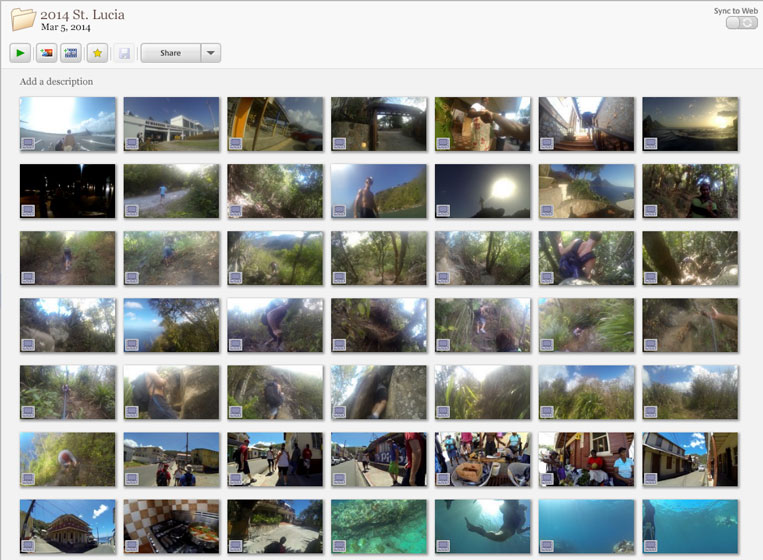
Your movies files should now have thumbnails and play inside of Picasa.
I hope this helps.

Thank you for the Picasa MP4 fix……………worked like a charm
thumbs up for this EXCELLENT fix of a problem that had cost me a lot of time! Now I can use picasa to generate a mixed slideshow of photos and videos (MP4 and MTS format).
Thanks. I used to have mp4s; suddenly they disappeared. I updated K-Lite and everything worked again. One of the wonders of Windows.
Thank you so much for this – I had a hunch that Picasa was ‘missing’ a few MP4s and upon applying your fix have just rediscovered many films of my sons first years. Happy days.
I’ve downloaded K-Lite and have stopped twice going through the install process because I’m not clear what to do here. There are a lot of screens to go through and selections to make, all of which I don’t really understand. Should I just go through and select “next” assuming that if I selected basic download, all is good? Don’t want to cause more problems…
My MP4 videos were shown in Picasa without sound, K-Lite fixed that for me.
K-Lite also allowed me to use the original MTS files of my Sony DSC-HX60V camera in Picasa. To fix the thumbnails, moving files was not needed: I just updated them via the folder context menu in Picasa.
Google also recommends K-Lite: https://support.google.com/picasa/answer/106914?hl=en
The K-Lite install (now 11.1.0) fixed my Picasa-can’t-see-my-.MTS-files problem.
Many thanks for flagging it up.
However, rather than shifting video files back and forth, I think the simplest solution to get Picasa to re-process the video files is to go into Tools–>Options–>File Types and unselect the Videos and QuickTime Movies options, OK it, wait for a bit, then go back there and re-select the Videos and QuickTime Movies options. Picasa will go through its whole folder structure re-processing all the video files (as far as I can tell). It might take quite a while, depending on how many you have, but Picasa gets there eventually.
Chris, I had continued to experience new files having the same issue, but as you mentioned it seems K-Lite finally came out with a version that fixed this problem. I downloaded K-Lite Codec Pack 11.1.5 Basic and unchecked/rechecked my video files and all the new ones are showing now as well.
Thanks for sharing.
I can attest that this still works. I just tried it on Win7+Picasa3.9. I installed the Mega pack. Thanks for the info.
Thanks. Now it’s working!!
I can also attest that this still works in august 2016 on the last Picasa update. I just tried it on Win7+Picasa3.9.141. I installed the standard pack (27MB). Thanks for the info.
Thanks for this; MP4s stopped working after I removed quicktime, now everything is working again; installed the full pack.
Win7 + picasa 3.9.141. Would not recognize mp4 or mov files at all even with quicktime. Installed k-codec 10.8.0 full and everything works again, and smoother than ever.
Thanks,
James M
Thanks for the fix. It works smoothly.